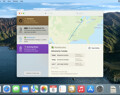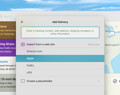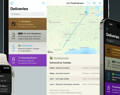
Add to Deliveries for Alfred This workflow will allow you to quickly add a tracking number to Deliveries using Alfred. You’ll need…
Deliveries for iOS Help
Current Status
Updated May 19th: Deliveries 8.0.3 for iOS fixes most known problems. See the latest service updates.
Getting Started
- Adding a Delivery: Learn all the options so you can choose the easiest one every time.
- Helpful Tips: Learn how to get the most out of the app.
- Set Up Syncing: iCloud syncs automatically, but for greater flexibility you can use Junecloud Sync.
- Supported Services: See a full list of the shipping companies we support.
Common Questions
How can I track an Amazon Logistics (AMZL_US) shipment?
Just use the “Amazon - by tracking link” option. If you go to Amazon’s “Your Orders” page in Safari, you can use the Share button and then choose “Add to Deliveries” for a list of shipments you can add. Or you can copy the link of any “Track package” button on the “Your Orders” page and paste it into the text field on the “Add Delivery” screen.
Why is Amazon asking me to sign in frequently?
In most cases, after you sign in once or twice, Amazon will keep you signed in for an extended period of time. Unfortunately we do not have control over this, and you may be asked to sign in more often.
You can check Amazon orders without signing in at all—just use the new “Amazon - by tracking link” option. If you go to Amazon’s “Your Orders” page in Safari, you can use the Share button and then choose “Add to Deliveries” for a list of shipments you can add. Or you can copy the link of any “Track package” button on the “Your Orders” page and paste it into Deliveries. The “Amazon - by tracking link” option will track a specific shipment, rather than the whole order. In most cases these links are available soon after the order is placed—you don’t have to wait until it ships.
If you’d prefer to track your deliveries by order number, here are some things that may help:
- Make sure you have Deliveries 8.0 or later for iOS, or Deliveries 3.0 or later for Mac. These updates include important fixes.
- When you sign in to Amazon, you should see a “keep me signed in” checkbox below the sign in form. Make sure this is checked.
- If you have multiple Amazon accounts, you can only update orders from one account at a time. You can use the “Amazon - by tracking link” option to track shipments from other accounts.
If you don’t see the “keep me signed in” checkbox, or you’re asked to sign in multiple times a day, use the button below to clear your cookies, then sign in again. (Note: this requires Deliveries 8.0 for iOS or Deliveries 3.0 for Mac.)
Clear Cookies
Why are Amazon shipments that previously worked now showing "please enter a valid Amazon tracking link"?
This can happen if you’re syncing with iCloud and have one or more devices that don’t have the latest version installed. Unfortunately older versions get confused by a delivery type they don’t recognize, remove the link because they weren’t expecting it to have one, and then sync that change back out to your other devices. Once all of your devices are up to date, you can add the links back, and this shouldn’t happen again. We’ve also made some changes to help ensure this type of thing doesn’t happen in the future.
Does Deliveries work with Amazon's two-step verification?
Yes. Make sure to update to Deliveries 7.1.3 for iOS or Deliveries 2.1.2 for Mac. After adding an Amazon delivery or entering your password you will be prompted to sign in. Make sure you select the checkboxes to “keep me signed in” and “don’t ask for codes on this device”.
Why are my Amazon orders not updating or showing "Your password is incorrect"?
We recently released updates to fix this problem—Deliveries 7.1.3 for iOS and Deliveries 2.1.2 for Mac. You can download the latest version from the App Store.
Why can't I find the complication on my Apple Watch?
Deliveries 7.1.2 adds support for all the complication types and sizes. If the app is up to date and you’re still not seeing it, make sure you have watchOS 2.2 or later, and the app is installed on your Apple Watch.
Why am I not receiving any notifications?
Here are some things that may help:
- Make sure notifications are on—they’re off by default. Tap the settings button, then Notifications, and make sure the “Background notifications” switch is on. If you don’t see this option, make sure you have Deliveries 5.0 or later, and iOS 7 or later.
- Don’t force the app to close by swiping up on the app when the multitasking view is open. If you do this then iOS will not let the app run in the background until you manually open the app again.
If those don’t help, here are a few more tips:
- Double check that Background App Refresh is enabled. Open the Settings app, then tap General. Tap “Background App Refresh”. Make sure the switch at the top is on. Then find Deliveries in the list, and make sure its switch is on too.
- If you’re using Junecloud sync, try switching to iCloud. With the latest version of the app you should see an improvement in the reliability and efficiency of background updates.
- Connect to Wi-Fi when you can, especially if you’re using Junecloud sync. Your device will allow Deliveries to refresh more often when it’s on Wi-Fi. Of course if you’re not on Wi-Fi, you need to have a cellular data connection or it won’t be able to update at all.
- In some cases, background app refresh may be disabled after your device is restarted or your battery runs out. Reopen the app once to get it working again.
- If your device is in low power mode (with a yellow battery icon) then the app may update less often, or not update at all in the background.
- If you’re wondering about the status of a package, just open the app and check. iOS will notice you opening the app more often and allow it to run in the background more often. Over time you won’t have to update the app as often to get notifications.
- If a shipment’s status changes while you have the app open, Deliveries assumes you saw that change and won’t give you a notification about it. (Until the status changes again, of course.)
- Keep your device charged. Our background updates use very little battery power, but iOS may allow apps to update less often if the battery is low.
Why is my delivery “Not Found”?
Here are some tips when a delivery is “not found”:
- Your shipment may not show up in the company’s tracking system right away. The “view details online” button will show the shipping company’s web site. If you see a “not found” error there as well, it may not be in their system yet. Try checking again tomorrow.
- Make sure the service you’re trying to use is supported. For example DHL has many different tracking services, and FedEx UK has a separate tracking service that’s not currently supported. This list of supported services has notes about options that aren’t currently supported.
- Make sure the service matches the number you’ve entered. For example, if you select Amazon, you need to enter an Amazon order number. If you want to enter a UPS tracking number you need to select UPS, even if it was shipped from Amazon. Also if you ordered from Amazon.com, make sure you’ve selected Amazon.com rather than Amazon.de, for example. If you have a link to your tracking page, try pasting that into the app—often this will select the right settings automatically. Learn about other ways to add deliveries here.
- Make sure you’ve entered your order number or tracking number exactly. For example, Amazon orders must include the dashes.
- Email addresses and passwords are usually case sensitive. If you signed up with the address Mike@example.com, but you enter mike@example.com, you may not be able to log in.
- For Apple orders you paid for with Apple Pay, use the default email address in your Apple Pay settings rather than your Apple ID. You can also check the address your order confirmation email was sent to—or look at the “Billing Contact” email address listed there.
- Double-check that you’ve entered everything in the correct fields. One common mistake is accidentally entering the tracking number in the item name field.
- If these suggestions aren’t helping, please contact us. If you don’t mind sharing your tracking number, include it in your email, and we’ll check it for problems.
What should I do if iCloud isn't working?
If iCloud syncing isn’t working, make sure you have a working internet connection, and you may need to give iCloud some time to sync. If you’re still having problems, try the suggestions below.
Make sure Deliveries is up to date
We recently changed the way iCloud syncing works, to make it both faster and more reliable. Older versions won’t be able to sync with these newer versions, so make sure you have the latest version of Deliveries on all your devices. You’ll need Deliveries 6.2 or later for iOS or Deliveries 1.2 or later for Mac to keep everything in sync. You can check for updates by opening the App Store app, then tapping on the Updates tab.
Make sure iOS is up to date
We also recommend using the latest version of iOS. You can check for iOS updates by opening the Settings app, tapping General, then Software Update.
Make sure iCloud is enabled
- Open the Settings app
- Tap “iCloud”
- Make sure you’re logged in to your iCloud account
- Tap “iCloud Drive”
- Make sure “iCloud Drive” is turned on at the top, and “Deliveries” is turned on in the list of apps below
- Return to the Deliveries app, and tap the settings icon
- Tap “Sync”
- Make sure it says “Syncing with iCloud”
Reset iCloud data
If you’re still having problems, you can reset the app’s iCloud data. This will delete all of your synced data from iCloud. Deliveries saved on your devices will be re-synced the next time you open the app. To get started, open this page on the device that has the most up to date copy of your deliveries, and press the button below.
Reset iCloud data
We’ve found that these suggestions solve most iCloud problems. If it’s still not working, please let us know and we’ll do our best to help you. You may also want to try switching to Junecloud sync, especially if you need to sync with older versions of the app.
How do I find an archived delivery?
There’s a search field at the top of the Deliveries list. There’s a search field at the top of the Deliveries list. Select that, and buttons will appear that allow you to show active deliveries, archived deliveries, or all of your deliveries. You can also search by item name, shipping company, tracking number, last known location, and so on.
Why isn't the Today widget showing all of my deliveries?
The Today widget tries to focus on deliveries that are coming soon to save space. If a delivery is not arriving in the next few days or the status hasn’t changed in the past couple of days, it may not be shown in the Today widget. If you have any active deliveries, it will always show at least one. At most it will show one screen’s worth, which is the maximum iOS will allow.
Does the app have to be open to get notifications?
You don’t have to worry about whether it’s open or not—as long as you don’t manually close it by swiping up in the multitasking view. When you do that, iOS won’t allow the app to run in the background until you open it again. In other situations, iOS will automatically run the app in the background if it’s not already open, so it can update and show notifications.
Deliveries uses a feature called “Background App Refresh” to update your deliveries in the background. It runs for just a few seconds every 1 to 3 hours, depending on how soon your deliveries are expected. We’ve worked hard to make it very efficient, so you don’t have to worry about wasting battery life.
Why am I getting duplicate events with the “Add to calendar” option?
If you sync your calendars and your deliveries between multiple devices, we recommend only turning on the “Add to calendar” option on one device. (Preferably the device you use the most often.) That way Deliveries can update the events on one device, and iCloud will take care of syncing them to your other devices.
If you're still wondering why this happens: let's say you add a delivery on your iPhone, and then Deliveries creates an event for it. Deliveries now syncs with your iPad… but your calendar hasn't quite synced yet. So an event is created on your iPad as well. Once calendar gets caught up, you now have two calendar events on both devices. If this does happen, Deliveries will eventually clear up the duplicates on its own. You can also manually delete duplicate events without causing any problems.
How do I delete a delivery?
In the Deliveries list, you can swipe from right to left to reveal the “Archive” button. Tap “Archive” to remove a delivery from the list. You can look up archived deliveries later using the search field.
If you want to remove an item from the archive as well, tap on the delivery, then tap the “…” button. Choose “Delete”.
How do I track an EMS shipment?
EMS deliveries can usually be tracked in two places: the post office in the country the package is shipped from, and the post office in the country the package is shipped to. So if you have a package from the US to Canada, for example, you could track it using US Postal Service or Canada Post in Deliveries.
Unfortunately it's not possible for us to add China EMS (ems.com.cn) because of the verification code they use. However if the package is shipped from China to another country we support, you should be able to track the package that way.
If you enter an EMS tracking number, Deliveries should automatically detect one of the options for you, if it's a service we support. In some cases you may get better information if you manually change it to the other option.
Why doesn't the “Other” option show my tracking details?
“Other” doesn't work quite like the services that we support directly. It's a way to manually keep track of a package from another service, so you can have all your shipments in one place. If you enter a date then Deliveries will count down to that delivery date for you. If you enter a web site then Deliveries will try to monitor that page and let you know when it changes. You'll also be able to tap “View details online” to open the web site and manually check the status.
Why is the map sometimes incorrect?
Deliveries takes the location given from the shipping company and asks Apple's mapping service where it is. Sometimes the mapping service will make the wrong guess at where that location is, especially if it's not specific enough (for example if the shipping company doesn't specify the country). You can drag the pin to the correct location, and it will remember any corrections you make for the future. Just tap and hold the pin, then move it to the correct place.
Why isn’t DHL GlobalMail working?
DHL GlobalMail can be confusing because sometimes the “tracking number” they show at the top of the page is not actually a tracking number. If you try entering it in their own form you’ll even get an error there. If you look at the bottom of your tracking page you’ll see a “DHL GM” and a “Customer Confirm” number—try using one of those. It should work correctly with at least one of them.
How can I turn off the notification sounds?
Tap the Settings app on your home screen, then tap Notifications. Find “Deliveries” in the list and tap it. Tap the switch next to Sounds to turn it off.
My favorite store or delivery company isn’t listed. Will you add it?
Maybe! Let us know what you’re looking for, and we’ll add it to our list for consideration. We do our best to add the most popular requests, though please understand that there are hundreds of shipping services in the world, and it’s just not possible to add all of them. If you can provide a tracking number for the service in question, that’s very helpful as it allows us to test the service more thoroughly.
Unfortunately it’s not possible for us to support China EMS (ems.com.cn) because of the “verification code” they use.
Are my passwords sent securely? Is anything sent through your server?
Passwords are sent directly to the delivery company's site over a secure (https) connection, same as when you log in through your web browser. Even your tracking numbers are sent securely whenever possible. Your passwords are stored encrypted in your keychain, in the same way that other passwords are saved. While we can't offer any sort of guarantee, we've done our best to make sure it's secure and safe.
Deliveries periodically checks our server for service updates, and the widget will occasionally check for a new version of the widget. In both cases no personal information is sent aside from your IP address, the version of the app you're using, and so on.
If you choose to use our syncing services, your tracking details are sent securely through our server. Your passwords are never sent through our server. We do recommend that if you sign up for a Junecloud account, you use a unique password that you don't use on other sites. If you ever need to, you can change your Junecloud password here or reset it here.
If you prefer not to enter your passwords in Deliveries, you can always wait until your order ships and track it that way (via UPS, FedEx, etc.)
My question isn't listed here!
It may help to try Apple’s suggestions for Troubleshooting applications purchased from the App Store. Otherwise, please contact us and we’ll do our best to help you.
Software
Deliveries 3.0.3 for Mac Deliveries helps you keep track of all your packages, so you always know when they’re going to arrive. W…
Deliveries 8.0.3 for iOS Deliveries helps you keep track of all your packages, so you always know when they’re going to arrive. W…