Delivery Status for Mac Help
Support.
Updated November 10th, 2011
If you’re having trouble with our Delivery Status widget for Mac, first make sure you’re using the latest version of the widget. Mac OS X 10.5.1 (Leopard) or later is required. You can check your version of OS X by choosing “About this Mac” from your Apple menu. If you’re still having problems, consult the list of common questions below! Just click on a question to see the answer.
Current Status
Updated December 21st: Delivery Status 5.6.1 supports Growl 1.3, fixes various other problems, and adds some new features. If you’re having problems with Royal Mail, please try this beta version.
Common Questions
This is a bug in Dashboard itself unfortunately. We’ve reported the problem to Apple and we’re hoping they’ll fix it. In the meantime, there is a hidden setting to disable the tooltips that show delivery details. Open Terminal, enter this on one line, then press return:
defaults write widget-com.junecloud.widget.deliverystatus disabletooltips 1; killall Dock;
To turn the tooltips back on, enter:
defaults delete widget-com.junecloud.widget.deliverystatus disabletooltips; killall Dock;
Here are some tips:
- Your shipment may not show up in the tracking company’s system immediately. If you click the delivery, the shipping company’s web site will open in your browser. If you see a “not found” error there as well, it may not be in their system yet. Try checking the next day.
- Double-check that you’ve filled out the correct information in the correct fields. One common mistake is accidentally entering the tracking number in the item name field!
- Make sure you have the correct service selected. For example, if you select Amazon, you need to enter an Amazon order number. If you want to enter a UPS tracking number you need to select UPS, even if it was shipped from Amazon. Also if you ordered from Amazon.com, make sure you’ve selected Amazon.com rather than Amazon.de, for example.
- Make sure you’ve entered your order number or tracking number exactly. For example, Amazon orders must include the dashes.
- Email addresses and passwords are case sensitive. If you signed up with the address Mike@example.com, but you enter mike@example.com, you won’t be able to log in.
- If these suggestions aren’t helping, please contact us. If you don’t mind sharing your tracking number, include it in your email, and we’ll check it for problems.
DHL GlobalMail can be confusing because sometimes the “tracking number” they show at the top of the page is not actually a tracking number. If you try entering it in
their own form you’ll even get an error there. If you look at the bottom of your tracking page you’ll see a “DHL GM” and a “Customer Confirm” number—try using one of those. It should work correctly with at least one of them.
Just use the standard keyboard shortcuts: ⌘C for copy and ⌘V for paste. If the keyboard shortcuts aren’t working, this problem may be caused by CmdVees or moveAddict—if you have one of them installed, try removing or disabling it. The right-click or control-click menus are not available in Dashboard.
This is an unfortunate limitation of Dashboard. When the computer is restarted, it will not load any widgets until Dashboard is activated again. If you want to make sure Dashboard is loaded immediately when you log in, first open System Preferences in the Apple menu, then click the Accounts icon. Click the Login Items tab, and then click the + button below the list. Select Dashboard in your Applications folder, and click Add. Alternatively, you can use
Dashboard KickStart.
There’s a bug in MobileMe that can cause this. You should be able to fix it if you reset your sync data:
- Close any extra widgets
- Open System Preferences (in the Apple menu)
- Click the MobileMe icon
- Click the Sync tab
- Click the “Advanced…” button at the bottom
- Click “Reset Sync Data…”
- Set it to “Replace Dashboard Widgets On MobileMe with sync info from this computer”. (Make sure you click the arrow pointing right.)
- Click “Replace”.
Move your mouse over the widget, then click the
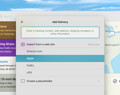
plus button that appears in the bottom-left corner. Delivery Status 5.0 or later includes all your deliveries in one widget, so you can add as many deliveries as you like this way. You can also
set up syncing, which will allow you to add new deliveries using
Delivery Status touch on your iPhone or iPod touch, or
through our web site in any browser.
You’ll want to follow these instructions on the device that does have the deliveries. (
See here if that’s the iPhone and iPod touch app.) First make sure your internet connection is working. If you just have one delivery that isn’t syncing, move your mouse over the delivery, click the Edit button that appears, then click Save—this will force it to re-sync. If you have multiple deliveries that aren’t syncing, click the
‘i’ button, then click the Sync tab. Log out of your sync account, and then log back in. This will force all of your deliveries to re-sync. On the devices that’s missing the deliveries, you can tap or click the “Updated” text at the bottom to refresh all your deliveries immediately.
Hover your mouse over a delivery for more details, or click on a delivery once to view your full tracking details in your web browser. Click twice on a delivery to view a map of the current location (when possible).
Passwords are sent directly to the delivery company’s site over a secure (https) connection, same as when you log in through your web browser. Even your tracking numbers are sent securely whenever possible. Your passwords are stored encrypted in your keychain, in the same way that other passwords are saved. While we can’t offer any sort of guarantee, we’ve done our best to make sure it’s secure and safe.
The widget will contact Junecloud.com occasionally to check for a new version of the widget. No information is sent apart from the standard information that’s sent when you visit any site (for example the browser name and version). If you choose to use our
syncing services, your tracking details are sent securely through our server. (If you’re still using our older email transfer service, please understand that email is not entirely secure.) Your passwords are never sent through our server.
If you still prefer not to enter your passwords in Delivery Status, you can always wait until your order ships and track it that way (via UPS, FedEx, etc.)
Maybe!
Let us know what you’re looking for, and we’ll add it to our list for consideration. We do our best to add the most popular requests, though please understand that there are hundreds of shipping services in the world, and it’s just not possible to add all of them. If you can provide a tracking number for the service in question, that’s very helpful as it allows us to test the service more thoroughly.
Unfortunately it’s not possible for us to support China EMS because of the “verification code” they use.
Please
contact us and we’ll do our best to help you.
Demobilizer 1.0
Demobilizer takes mobile web pages and automatically redirects them to the full site. For example,…
Notefile 1.1.1
Available on the App Store.
Get the app now »
Get the Dashboard widget »
Sync notes…
Notefile 1.1.1
Notefile is also available for iPhone, iPad, and iPod touch
Notefile lets you make quick notes and view…