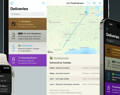
Deliveries 9.7.2 for iOS Deliveries helps you keep track of all your packages, so you always know when they’re going to arrive….
Deliveries for iOS and Deliveries for Mac can sync with iCloud. (Dashboard widgets cannot sync with iCloud.) This is enabled automatically if you’re logged into your iCloud account and you’re not already using Junecloud sync. If you are using Junecloud sync and you’d like to switch to iCloud, just open the settings and log out of Junecloud.
If you’d prefer to use Junecloud sync, this page can help you. To use any of these options, you’ll need to create an account here. Fill out the form completely, check the box to agree to our Terms of Service, and click Register. In the next 5 to 10 minutes you should receive an email with a confirmation link. Click the link in the email to confirm your account. Some email accounts may have problems with the link—if it’s broken, open the confirmation page and enter the code in the email. If you don’t receive the email, you can fill out the form again to have it re-sent.
Our sync services require Deliveries 4.4 or later. Open Deliveries and tap the button to open the settings. Then tap Sync. If you’re already syncing with iCloud, tap “Switch to Junecloud” at the bottom. Enter your email address and the password you used when you created your account. Tap the Save button when you’re done.
Once you’ve logged in successfully, syncing will happen automatically in the future. When you add a new delivery on another device, or our web site, the delivery will appear the next time Deliveries is opened. You can pull down on the “Deliveries” list to refresh it manually.
Open the Deliveries menu and choose “Preferences…”. (If the dock icon is hidden, click the button and choose “Preferences…” there.) Then click the Sync icon. If you’re already syncing with iCloud, click “Switch to Junecloud” at the bottom. Enter your email address and the password you used when you created your account. Click the Save button when you’re done.
Once you’ve logged in successfully, syncing will happen automatically in the future. When you add a new delivery on another device, or our web site, the delivery will appear the next time Deliveries is opened. You can open the File menu and choose “Refresh All” to update manually.
You’ll need Delivery Status 5.5 or later installed on your Mac. Open Dashboard and click the button to flip the widget over. Click the “Sync” tab. Enter your email address and the password you used when you created your account. Click “Sign In”. Your deliveries will be synced immediately.
Once you’ve logged in successfully, syncing will happen automatically in the future. When you add a new delivery on another device, or our web site, the delivery will appear the next time Dashboard is opened. You can click the “Updated…” text to update manually.
With Junecloud Sync you can add deliveries from any web browser. Just visit our Junecloud Sync site and log in.
Deliveries 9.7.2 for iOS Deliveries helps you keep track of all your packages, so you always know when they’re going to arrive….
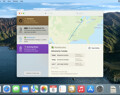
Deliveries 9.7 for Mac Deliveries helps you keep track of all your packages, so you always know when they’re going to arrive….
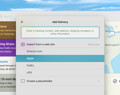
Add to Deliveries 1.3 Browser Extension This browser extension will allow you to quickly add a tracking number to Deliveries using Google Chrome,…