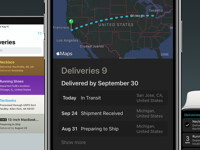
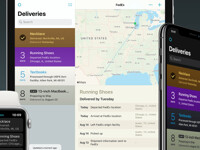
Delivery Status touch has been submitted to Apple!

Delivery Status touch (for iPhone and iPod touch) is complete—I sent it off to Apple last night. Hopefully it will appear in the App Store next week, but don’t be surprised if it takes longer. It will be available initially for an introductory price of $1.99, so I recommend grabbing it quickly if you’re interested! Keep an eye on the site, as I’ll be posting an update when it’s available.
This initial release is just the beginning. Assuming it sells well, I already have a big list of features I’d like to add in the future. There are a couple of other package trackers in the App Store already—ours won’t be the first and it looks like it won’t be the cheapest. I do aim to make it the best though, and from what I’ve seen we have a good head start. I hope you’ll consider supporting us!
In the meantime, you can download Delivery Status 4.4 for your Mac right now. Along with various fixes and enhancements, this update includes a feature that will let you send deliveries to Delivery Status touch, on your iPhone or iPod touch. Just flip the widget over and click the new arrow button in the bottom-left corner.
Just to clarify: while you can send deliveries to your iPhone or iPod touch now, Delivery Status touch is required to open them. I decided to release the widget update in advance so you can have it ready once the app is available in the App Store. Sorry for any confusion!
Updated on September 19th: Delivery Status touch has been approved for sale, and should be available in the App Store very soon!
Updated again: Delivery Status touch is now available in the App Store! Thanks everyone for your support, I really appreciate it. If you decide to buy the app, please take a moment to write a review!
Delivery Status touch icon

While working on Delivery Status touch (for iPhone and iPod touch) it was clear I needed a new icon. The old “18 days” icon I’ve used for the Dashboard widget was just something I threw together quickly. I never spent much time on it because it isn’t seen terribly often, and I couldn’t justify spending a lot of extra time on a free widget that already sucks up a lot of work hours. Delivery Status touch is different though—that icon will live on people’s home screens and they’ll tap it every time they use the app. Plus it was a good excuse to finally do what I’ve wanted to do for a while now.
I knew from the start I wanted to use a delivery truck. I started out sketching the type of vehicle you generally see delivering packages to your door. It didn’t quite fit the space though, and I loved the idea of designing the icon as a physical object that just happens to fit perfectly into a rounded square area. So I went with something more like a semi. I had to abstract the design somewhat—if this was a real vehicle it’d look very odd—but I think I’ve managed a design that looks striking and unique without looking strange. It’s instantly recognizable as a truck.
I decided on the color early on. I wanted to use something brighter at first. Blue was tempting but there are a lot of blue icons on the iPhone already. Red works well for icons like Calendar and FileMagnet but in this case I felt there’d be too much of it. Yellow was out because it’d look too much like Panic’s Transmit icon. Other bright colors like purple or orange just didn’t seem right to me. Eventually I settled on a shade of brown that falls somewhere between the old Delivery Status widget icon and the darker brown of a UPS truck. I think it’s a perfect fit, and it mingles well with the other iPhone icons. The touch of blue through the window and the yellow headlights help it stand out. (I was careful to roughly match the blue sky in the Weather and Photos icons.)
I wanted a design that would work at larger sizes in addition to the small iPhone icon size, so I could use it for the Mac OS X Dashboard widget as well as in promotional materials. That was a tough, I spent a lot of time struggling with it. Early on I reduced the number of bars in the grille, as they blurred together on the iPhone when there were more of them. Initially I had a dark bumper and lighter grille, but the bumper got lost on the iPhone’s black background so the values were switched.
I also used a lot of hard lines for shadows and highlights initially. It looked good on the iPhone but blown up it seemed very flat—it looked like a bunch of graphic shapes instead of a cohesive object with depth and form. So as the design progressed, I added more gradients, blurred the shadows, and used highlights to pull the shapes together. The black lines were toned down as well. Gradients and highlights that seemed much too strong in the larger view were often difficult to even see on the iPhone, so I spent a lot of time tweaking, testing, and repeating.
Initially I didn’t plan on using the standard glossy curve you see on many of the iPhone’s icons. Something wasn’t quite right though in the final stages, it was still lacking depth. After hours spent tweaking it (I’m not even kidding), that glossy highlight turned out to be exactly what it needed.
I used Adobe Illustrator to create most of the icon—probably the most complex work I’ve ever done in Illustrator. The finishing touches, including the top and bottom bevels and the glossy highlight, were done in Photoshop. I also used Photoshop for the first color mockup you see in the progression. It seemed like the easiest way to rough in the colors and make sure it was working well, before I recreated it all in Illustrator.
Smart Widget Installer 1.1 beta with Tiger compatibility
A lot of Tiger users have had problems with my Smart Widget Installer. I’ve become much more comfortable writing apps in Cocoa over the past several weeks so I decided it was time I gave this one an overhaul. Previously it was written entirely in AppleScript, which can be somewhat unreliable. Here’s what’s new:
- Completely rewritten in Cocoa instead of AppleScript for better performance and reliability
- Improved compatibility with Tiger (10.4.10 or later)
- The widget’s icon is now displayed in the installation dialog box
- In addition to dropping a widget on the application icon, you can now choose “Install…” from the File menu
- After a smart upgrade, a brief “Installation complete” message is now displayed
- Select All and Copy are now available, which should make it easier to report errors, if necessary!
Download Smart Widget Installer 1.1 beta 1.
Universal, requires Mac OS X 10.4.10 or later.
« NEWER | 1 | 2 | 3 | 4 | 5 | 6 | 7 | 8 | 9 | 10 | 11 | OLDER »
Songs
This is what we’re listening to right now:

Phantom Limb
by The Shins
Blogs
This is what we’ve been reading recently:
- Let Me Google That For You Teaches You How To Google [Google]
- Park Bench-Sized Ghetto Blaster Plays Music Via Bluetooth [Boom Bench]
- Coraline Site Up
- ★ Google Mobile Uses Private iPhone APIs
- VIDEO: Here's a demo of some thoughtful UI on Ffffound.com.
- Ana Serrano
- Release day
- Finally, Lasers That Heal Wounds Rather Than Creating Them [Science]
View more
Design
Business Cards My new business cards finally showed up today, and they look awesome. Same as with the…
Welcome to Junecloud! When I first started running my own business full time a few years back, I really wasn’t…
Reviews I’ve decided to add a new section to my journal: reviews. As a designer I spend a lot of…